Migration Control Center
Complete reference for every feature, workflow, and function in the MCC platform — from first login through final archive. Use the sidebar to jump to any section.
1. Login & Authentication
MCC is secured by Microsoft Entra ID (formerly Azure AD). No account creation is required — your Harris Computer Microsoft account is your identity.
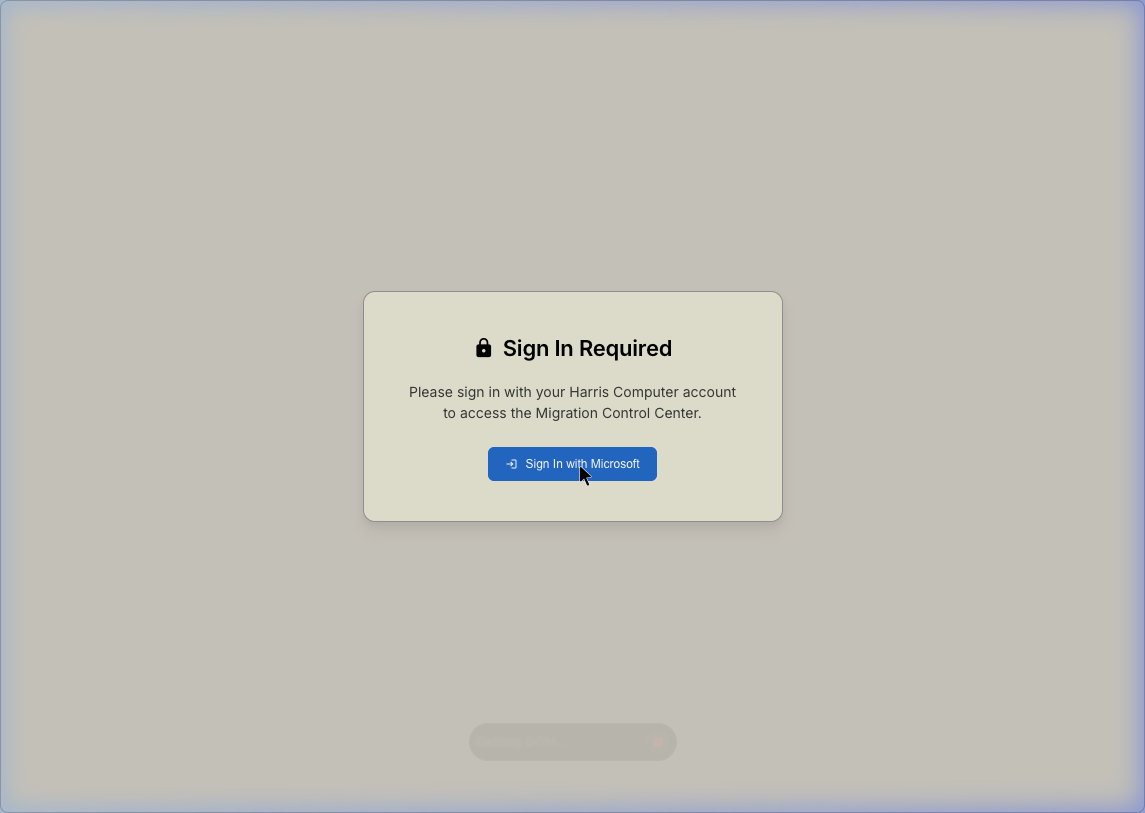
The authentication gate is shown before the app shell is rendered.
- 1Navigate to the MCC application URL in your browser.
- 2The app checks your session immediately. If you are not authenticated, the Sign In Required overlay appears automatically — the full application layout is hidden until authentication is confirmed.
- 3Click "Sign In with Microsoft". This triggers an MSAL (Microsoft Authentication Library) popup or redirect to the Microsoft login page.
- 4Enter your Microsoft credentials and, if required, approve the sign-in via Microsoft Authenticator or SMS MFA.
- 5MCC requests the following Graph API permission scopes:
User.Read,Sites.ReadWrite.All, andAuditLog.Read.All. You may be asked to consent on first login. - 6Once authenticated, the auth gate fades and the main Dashboard is rendered. Your display name appears in the top-right corner.
2. The Dashboard
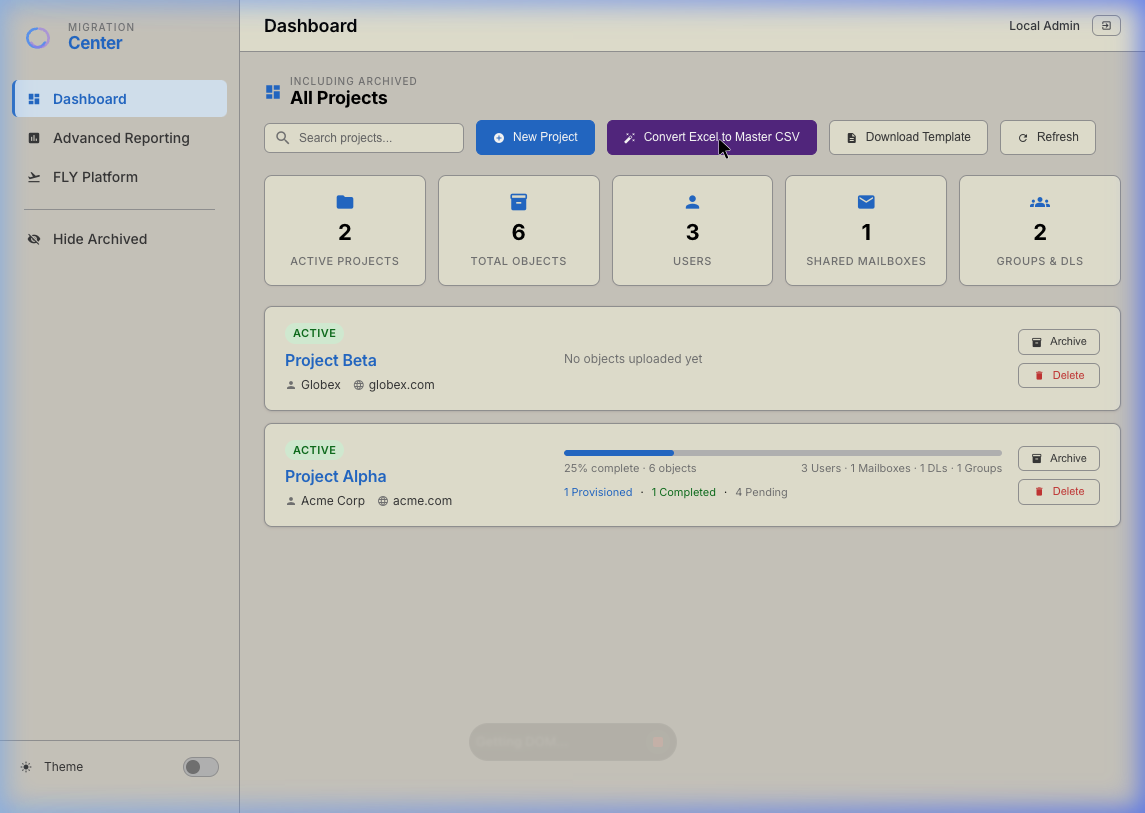
The Dashboard is your command center. It aggregates live data from SharePoint and gives you immediate visibility into all active migration projects.
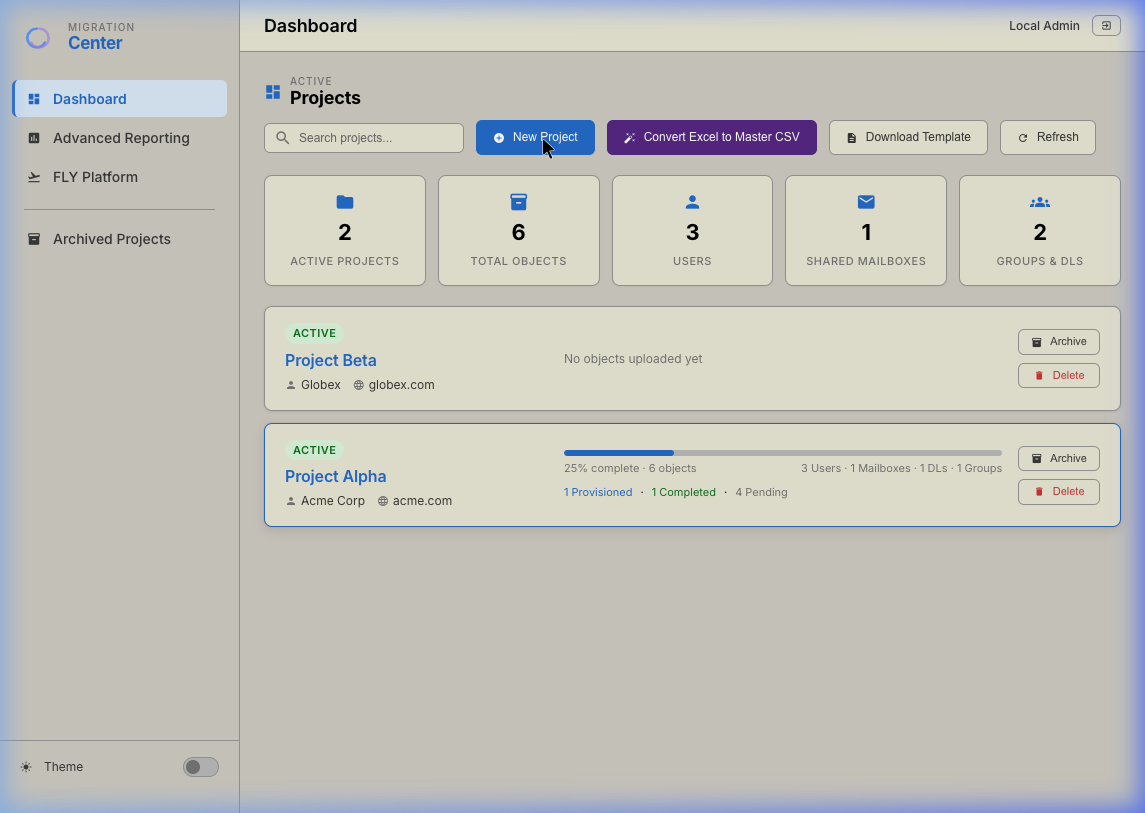
The dashboard loads project cards directly from SharePoint via the Microsoft Graph API.
Left Sidebar Navigation
fly.avepointonlineservices.com —
the AvePoint FLY migration tool. Opens in a new tab so your MCC session is preserved.
Archived. The same dashboard view is used — only the filter
changes.Statistics Cards
The five counters at the top of the dashboard are computed live from the full project dataset as it loads from SharePoint:
Count of project cards whose ProjectStatus field is not Archived.
Sum of all rows in the Migration Master list across every active project.
Objects where ObjectType is User, UserMailbox, or
MailUser.
Objects where ObjectType is SharedMailbox.
Objects where ObjectType is DistributionList or
SecurityGroup.
Quick Actions Toolbar
Projects list. See Section 3 for full
details.3. Creating a New Project
Each migration engagement lives in its own project container. The project defines the namespace (suffix & domain) used for all auto-generated user accounts and UPNs.
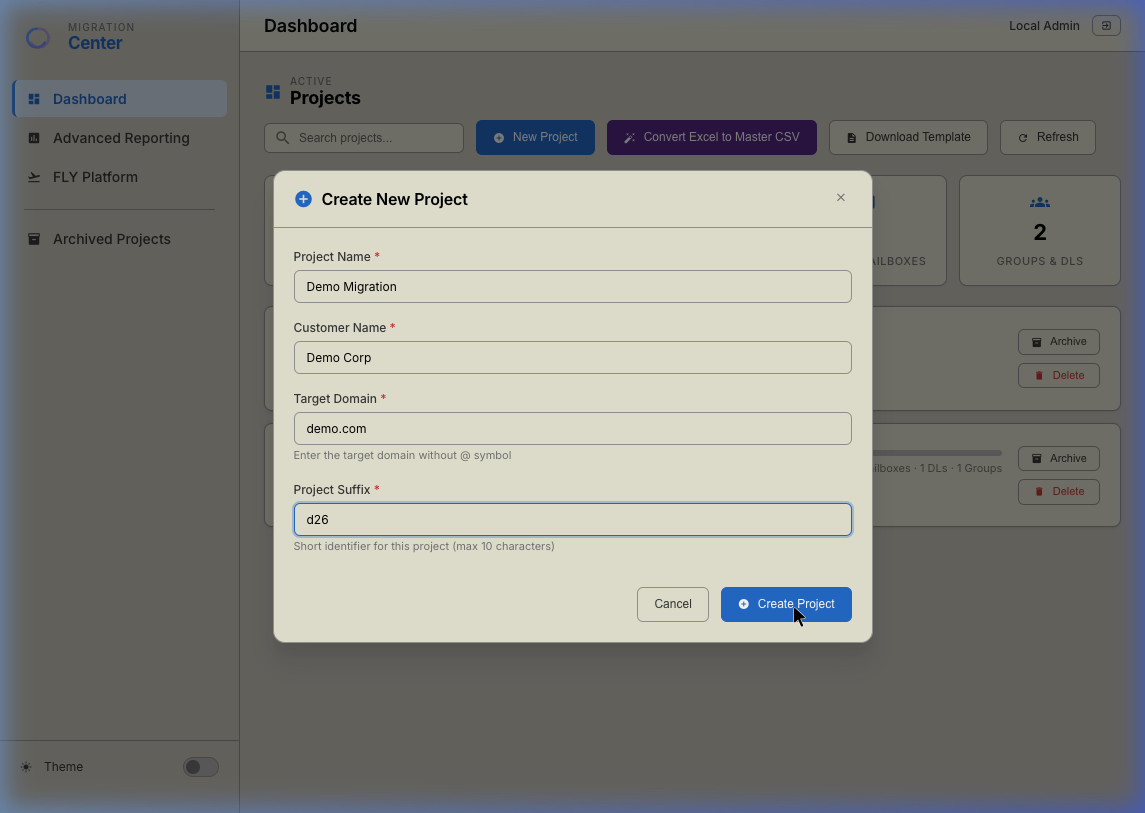
The project creation form — all four fields are required.
| Field | Example | Purpose |
|---|---|---|
| Project Name | Project Beta |
Human-readable label shown on the dashboard card. Also used as the Title key to
link all migration objects to this project in SharePoint. |
| Customer Name | Globex Inc. |
Shown on the project card and in generated reports. Purely informational. |
| Target Domain | globex.com |
The final email domain for migrated users. Used by UPN generation to construct
firstname.lastname@globex.com. Enter without the @ symbol.
|
| Project Suffix | gbx |
A short alphanumeric identifier (max 10 chars) appended to temporary UPNs during
coexistence: firstname.lastname-gbx@globex.com. It is also stored on every
migration object for filtering. Use lowercase letters and numbers only. |
4. Managing a Migration Project
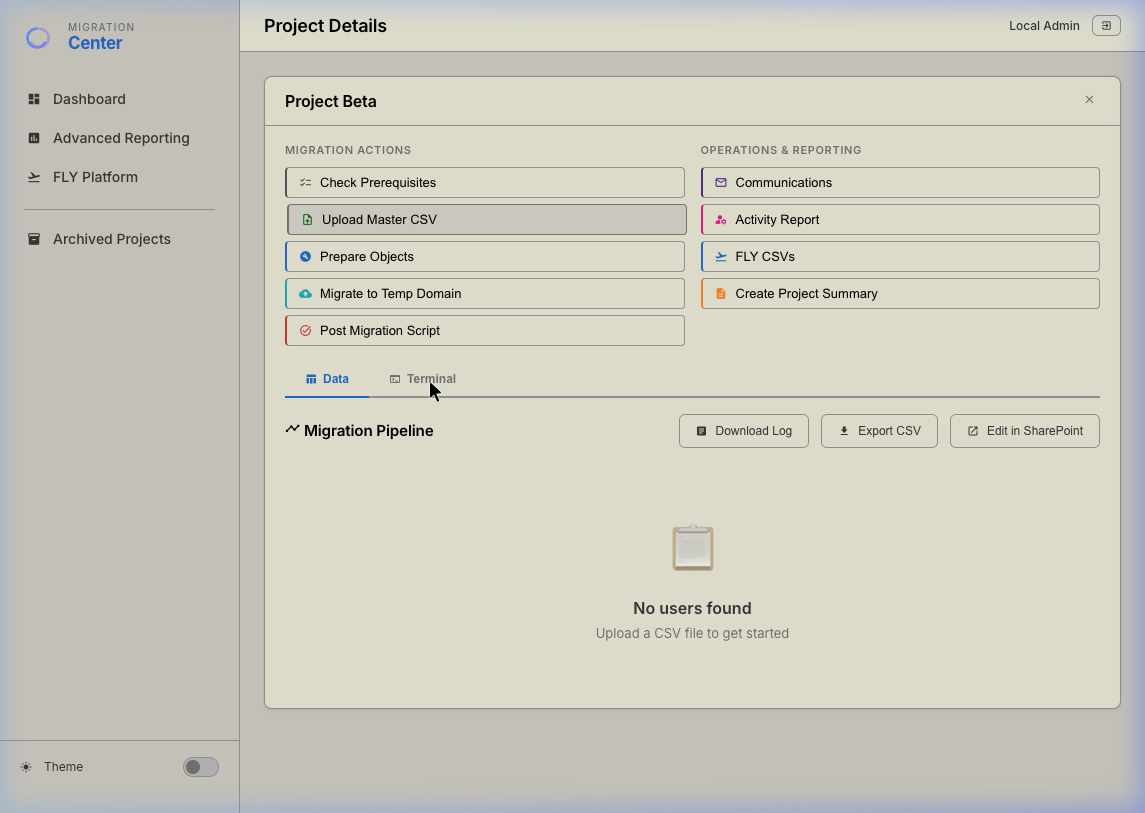
Clicking any project card opens the Project Detail view — the core workspace where the migration lifecycle is executed step by step. The two columns of action buttons on the left represent the sequential migration workflow; the right column provides reporting and operational utilities.
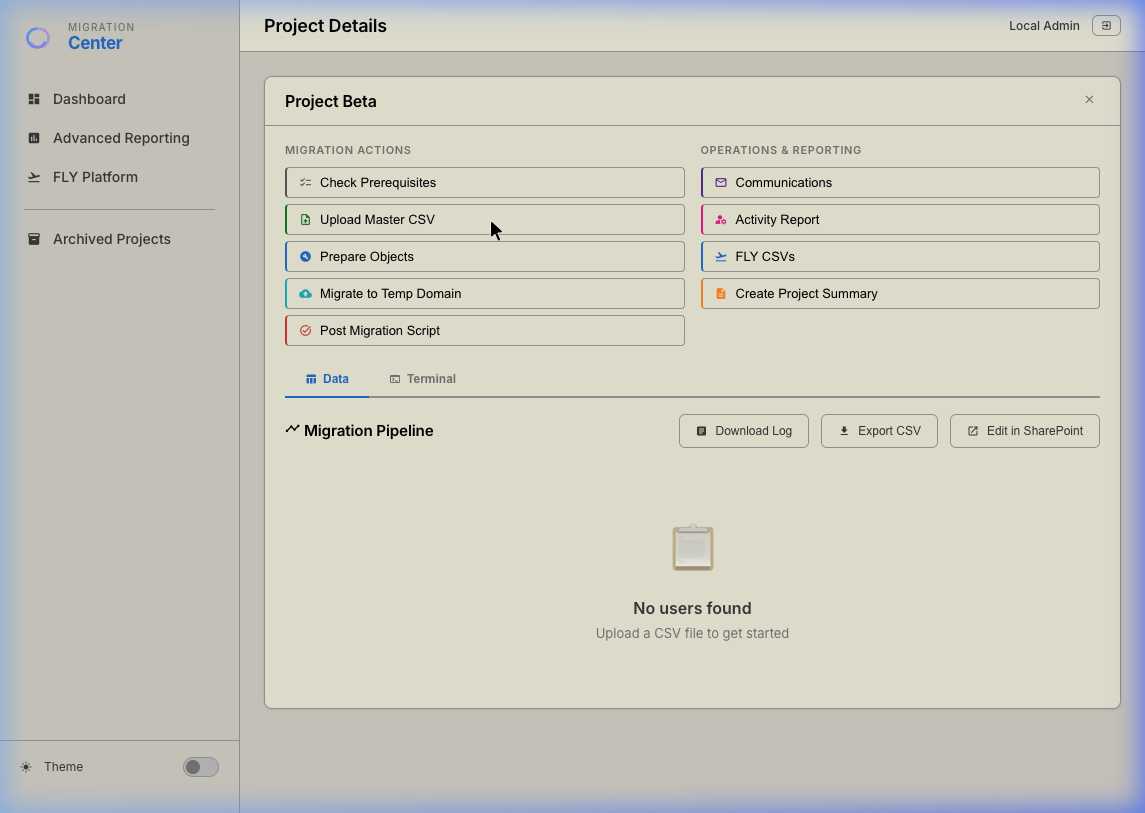
Project detail view with Migration Actions (left) and Operations & Reporting (right).
Check Prerequisites
Step 1 of 5 — DiagnosticRuns a live diagnostic across four checkpoints to confirm the environment is healthy before you begin. Results stream into the Terminal tab in real time.
GET /me against the Graph API using your
current access token. A successful response confirms that your token is valid, scopes
are correctly consented, and the API endpoint is reachable. Failure here means
authentication or network issues must be resolved first.Projects,
MigrationMasterV2, MigrationLogs, MasterFiles)
with a light GET request. Each list is reported as accessible
✓ or FAILED individually — this pinpoints permission gaps
on specific lists.
/api/health endpoint of the deployed
Azure Function App. A healthy response returns a JSON payload with
status: "ok" and a runtime version. A failure here produces a Warning (not
an Error) because some operations do not require the API — it may also be normal in
local development.
Upload Master CSV
Step 2 of 5 — Data ImportThe Master CSV is the source of truth for a migration project. It defines every object (user, shared mailbox, group, etc.) to be migrated and the UPN mappings between source and target tenants.
CSV Schema — Required & Optional Fields
| Field | Required | Description |
|---|---|---|
Source |
✅ Yes | The current UPN or email of the object in the source tenant. E.g.
john.smith@oldcorp.com
|
Temporary |
⚠️ Auto-generated | The coexistence UPN in the target tenant with the project suffix. E.g.
john.smith-gbx@globex.com. Can be left blank — it will be generated by the
Prepare Objects step.
|
Target |
⚠️ Auto-generated | The final UPN in the target tenant. E.g. john.smith@globex.com. Generated
alongside Temporary if blank. |
FirstName |
✅ For users | Used for UPN generation and display. German umlauts (ä→ae, ö→oe, ü→ue, ß→ss) are normalized automatically. |
Surname |
✅ For users | Combined with FirstName to generate the firstname.lastname UPN local part.
|
DisplayName |
✅ Yes | Used for the mail nickname calculation and shown in all reports. Fallback for UPN generation when FirstName/Surname are absent. |
ObjectType |
✅ Yes | Determines migration handling and FLY CSV export type. Valid values: User,
UserMailbox, MailUser, SharedMailbox,
DistributionList, SecurityGroup.
|
EmployeeType |
○ Optional | Contextual classification for users: Internal or External.
Used in communications filtering (only Internal/User types receive migration emails).
|
MailNickname |
⚠️ Auto-generated | The Exchange alias, e.g. john.smith-gbx. Automatically derived from
DisplayName + ProjectSuffix if not provided. |
MigrationWave |
○ Optional | Batch grouping label (e.g. Wave1, Wave2). Useful for phased
rollouts. Not yet used for automated filtering in the current release. |
Aliases, SendAs, SendOnBehalf,
FullAccess
|
○ Optional | Delegation and permission data. Populated if available, used in future automation scripts. |
Manager, JobTitle, Department,
Company
|
○ Optional | HR metadata fields. Included in the generated reports and passed through to the target account during provisioning. |
MigrationMasterV2 SharePoint list. All objects are given a
MigrationStatus of Pending on initial upload. The upload is streamed
in configurable batches — the Terminal shows progress per row.
Migration status lifecycle — objects progress left to right as steps complete.
Prepare Objects
Step 3 of 5 — UPN Generation & ApprovalPrepare Objects is the first computational step. It reads every row in your project's migration list, generates missing UPNs using a deterministic algorithm, deduplicates, then presents an approval queue for your review before any changes are committed to SharePoint.
UPN Generation Algorithm
The system generates Temporary and Target UPNs for any row where they are missing, using the following priority order:
- 1FirstName + Surname available: Local part
=
firstname.surname. E.g. Hans Müller →hans.mueller(umlauts normalized: ä→ae, ö→oe, ü→ue, ß→ss). Spaces become dots, special characters are stripped. - 2DisplayName only: The display name is
split on spaces; the first and last tokens are used: Maria A. Garcia →
maria.garcia. - 3Temporary UPN:
{local}-{projectSuffix}@{targetDomain}— e.g.hans.mueller-gbx@globex.com. - 4Target UPN:
{local}@{targetDomain}— e.g.hans.mueller@globex.com. - 5Mail Nickname: Auto-derived as
{local}-{projectSuffix}for user and shared mailbox types if not already present.
The Approval Queue Modal
After UPN generation completes, the Review Provisioning Queue modal opens. It displays every object alongside its generated values:
Both Temporary and Target UPNs are set. Object is ready to be provisioned in the next step.
Object has some missing optional fields (e.g. no MigrationWave) but can still proceed.
Duplicate UPN detected or critical field missing. Must be resolved before confirming the queue.
Only after clicking "Confirm
Provisioning" are the generated UPNs written back to SharePoint. The status of each
processed object is updated from Pending to Provisioned.
Migrate to Temp Domain
Step 4 of 5 — Phase 1 MigrationThis step initiates Phase 1 of the two-phase migration model —
the coexistence phase. All migration objects are created in the target tenant under their
temporary UPN (firstname.lastname-suffix@domain), not their final UPN. This is
intentional.
Why a Temporary UPN?
During a tenant-to-tenant migration, both tenants must be active simultaneously
while data is being copied by FLY. The target tenant cannot have a user account at
john@globex.com until the source tenant's john@oldcorp.com is
decommissioned, because the email routing would create conflicts in Exchange Online. The temp UPN
(john-gbx@globex.com) sidesteps this by creating a functionally different address until
the swap is ready.
During this phase, the action:
- 1Reads all objects with status
Provisionedfrom this project. - 2For each object, triggers the provisioning runbook via a
Power Automate webhook (
CONFIG.flows.prepareObjects), passing the Temporary UPN, DisplayName, temp password, ObjectType, and project metadata. - 3The runbook creates the account in the target tenant under
the Temp UPN and sets the initial password (
TempPW). - 4On success, the object's
MigrationStatusis updated toCompletedand aHistorylog entry is appended with a timestamp. - 5The progress bar in the Terminal tracks completion in real time (N / Total).
Post Migration Script
Step 5 of 5 — Phase 2 Domain SwapOnce data migration via FLY is complete and users have signed in and confirmed their data, this step executes the domain swap — changing each user's UPN from the temporary address to their final target address.
What happens during the swap:
- 1The system loads all objects in the project with a
Completedstatus (i.e., those that were successfully migrated to the temp domain). - 2For each object, the PowerShell runbook
(
PostMigrationSwap.ps1) is triggered via a Power Automate webhook. It callsSet-MsolUserPrincipalName(or Graph API equivalent) to change the UPN from Temporary to Target on the account in the target tenant. - 3The user's primary SMTP address is also updated to match their new Target UPN.
- 4Old source-tenant email addresses are removed, and the target alias is promoted to primary.
- 5On success, the object's status is updated to
Migratedand a final history entry is written.
Live Terminal
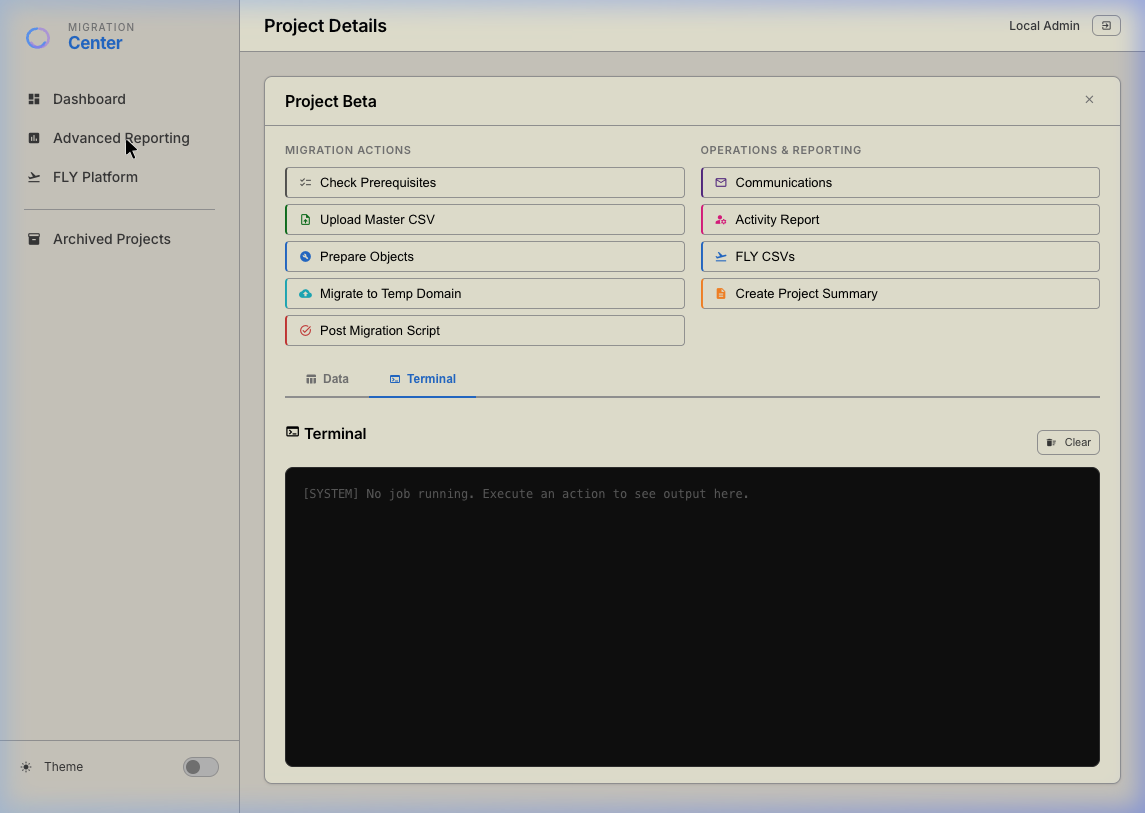
Every major action (Prerequisites, Prepare, Migrate, Post-Migration, Communications) streams its output to the Terminal tab in real time. The terminal uses a colour-coded log system:
The live terminal during an active provisioning job.
Structural messages — job start/end banners, step headers, summary lines.
Per-object progress lines showing what is being processed: UPN, DisplayName, status codes.
Confirmation that an action completed cleanly — object provisioned, email sent, check passed.
Non-fatal issues — optional fields missing, Azure Functions offline, missing temp UPNs. Job continues.
Fatal per-object failure — API error, HTTP non-2xx, or network exception. Error count is tracked.
The terminal also provides a progress bar (N / Total processed) and a Cancel button that gracefully aborts the current loop after the in-flight request completes. A red badge on the Terminal tab shows the count of errors from the last run.
Data Table — Migration Pipeline
The Data tab (shown by default) renders the full migration pipeline for the project as a paginated table (50 rows per page). Each row represents one migration object.
Downloads the current project's full dataset as a CSV with UTF-8 BOM (so Excel opens it correctly). Includes all 10 core fields.
Fetches the latest provisioning .log file for this project from the SharePoint
MasterFiles document library and downloads it.
Opens the MigrationMasterV2 SharePoint list directly in a new tab, allowing
manual row edits for edge cases.
Double-clicking any row opens a per-user detail modal showing all field values, migration history entries, and current status for that specific object.
5. Communications
The Communications feature sends templated migration notification emails to all
users in the project via Microsoft Graph from a backend Azure Function
(/api/send-mail) — no Power Automate. Emails are sent as the
shared mailbox it-support@harriscomputer.eu. It supports three distinct notification stages
and four languages, with a per-recipient review & preview window before sending. See
docs/EMAIL_SENDING.md for full setup.
Recipient Review & Preview
Choosing an email type opens a Recipient Review window listing every eligible user with checkboxes. Clicking a recipient shows a live HTML preview of their exact email (their temp UPN and password substituted, in the selected language). Send to only the selected users, or use Send to All. Users already sent this email are greyed out and skipped (idempotency) unless Force resend is enabled.
Temporary UPN and
TempPW). Action key: MailStart.
MailMid.
MailFinal.Language Selection
Choose the notification language from the dropdown in the review window. The
selected language is passed to the /api/send-mail Function, which renders the matching
localized template. Available: German, English,
French, Spanish.
Throttling, Retries & Object Filtering
The communications engine only emails user-type objects
(User, UserMailbox, MailUser) that have a Source
address. Shared mailboxes, distribution lists, and security groups are automatically excluded.
sendMail limits. If Graph
returns 429/503, the engine honours the Retry-After header
and retries the same user (up to 4 attempts with exponential backoff). For 500 users, expect
roughly 17 minutes; keep the tab open (a Cancel button is available). After a run, any failures can
be re-sent via Retry Failed or exported as a Failures CSV.
Payload Sent to /api/send-mail
| Field | Value |
|---|---|
toEmail |
User's Source address (the delivery/recipient address) |
displayName |
User's full name for email personalisation |
upn |
Temporary UPN (Temporary) the user should use to log in |
password |
Initial temporary password (TempPW) |
language |
Selected language (German / English / French / Spanish) |
actionType |
MailStart, MailMid, or MailFinal |
projectName |
Project title (for logging) |
Every final result is written to the MigrationLogs SharePoint list —
SENT on success or FAILED with the reason — providing an auditable,
idempotent record per project + action.
6. Activity Report
The Activity Report queries Microsoft Graph's signInActivity data to
determine which migrated users have actually logged in to their new account and changed their password —
the two key post-migration success indicators.
How It Works
- 1Select which UPN set to check: Temp UPNs (to verify users have logged in to their coexistence account) or Target UPNs (to verify post-swap success).
- 2The system collects all relevant UPNs from the project's migration objects. Only UPNs with a non-empty value in the selected column are included.
- 3For each UPN, MCC calls the Microsoft Graph
beta/usersendpoint with a$filter=userPrincipalName eq '...'query, requesting:displayName,userPrincipalName,signInActivity,lastPasswordChangeDateTime, andcreatedDateTime. - 4Requests are throttled at 250ms intervals. If a
429 Too Many Requestsresponse is received, the system reads theRetry-Afterheader and waits that duration plus a 500ms buffer before retrying (up to 3 retries per UPN). - 5The results are downloaded as a CSV file.
Output CSV Columns
| Column | Meaning |
|---|---|
SearchUPN |
The UPN that was queried |
DisplayName |
User's display name as found in Entra ID |
HasSignedIn |
TRUE if lastSuccessfulSignInDateTime is populated in Graph |
HasChangedPassword |
TRUE if lastPasswordChangeDateTime is more than 5 minutes after
createdDateTime — indicating the user actively changed it (not just an admin
reset)
|
LastSuccessfulSignInDateTime |
Timestamp of the most recent successful login |
LastPasswordChangeDateTime |
Timestamp of the most recent password change |
Status |
Success, User not found, or an error message |
signInActivity property requires either the Reports Reader or
Global Administrator role in the target tenant. If the report shows empty sign-in
data for all users, verify that your account has the appropriate Graph API permissions
(AuditLog.Read.All).
7. FLY CSVs
The FLY CSV export generates mapping files in the exact format required by the AvePoint FLY migration tool. FLY uses these CSVs to understand which source objects map to which destination objects — critical for mailbox, OneDrive, and Teams migrations.
Two Migration Phases
When you click FLY CSVs, you are first asked to select a phase:
Phase 1 CSVs. Source column = Source UPN, Destination column =
Temporary UPN. Used while FLY copies data from the old tenant to the new tenant's
coexistence accounts.
Phase 2 CSVs. Source column = Temporary UPN, Destination column =
Target UPN. Used after the domain swap to remap FLY jobs to the final addresses.
Four Export Types
| MCC ObjectType | FLY Type Label |
|---|---|
User, UserMailbox, MailUser |
Mailbox |
SharedMailbox |
SharedMailbox |
DistributionList |
DistributionGroup |
SecurityGroup |
MailEnabledSecurityGroup |
Source, Source type, Destination,
Destination type.
User, UserMailbox,
MailUser). Shared mailboxes, DLs, and groups are excluded — they do not have
personal Teams chats. Columns: Source user, Destination user.
DisplayName for team names and the Source/Target (or
Temporary) UPN for the team's email address. The channel mapping columns
(Source channel name, Destination channel name,
Destination channel type) are left blank — they must be filled in manually for
Teams migrations with custom channel structures. Columns: Source team name,
Source team email address, Destination team name,
Destination team email address, Channel mappings,
Source channel name, Destination channel name,
Destination channel type.
Source user, Destination user.
Project_Beta_EXO_2026-05-13.csv.
8. Create Project Summary
Generates a self-contained HTML report that captures the complete state of a migration project at the time of generation. The report opens in a new browser tab and can be printed or saved as a PDF using your browser's print function.
Lessons Learned
Before the report is generated, a Lessons Learned modal appears. You can type free-form notes about the migration — challenges encountered, workarounds used, customer-specific quirks. These notes are embedded verbatim in the final report. Click Skip if no notes are needed.
Report Contents
Five key metrics: Total Objects, Completed, Provisioned, Errors, and Pending. Plus a visual progress bar showing the overall completion percentage.
A table showing totals, completions, and errors separated by ObjectType (User, SharedMailbox, DistributionList, SecurityGroup). Completion % is calculated per type.
A full list of all objects with Error status, showing DisplayName, Source UPN,
ObjectType, and the full History log for each failed object.
Objects that have more than one History entry (indicating they were retried) are flagged in a separate table with their final status and full history chain.
The free-text notes entered in the Lessons Learned modal, rendered in a highlighted yellow panel.
9. Convert Excel to Master CSV
When source migration data arrives in a customer-formatted Excel file rather than
the MCC schema, this tool bridges the gap. It reads any .xlsx or .xls file and
intelligently maps its columns to the MCC schema using a four-tier confidence algorithm.
The Smart Column Mapper showing auto-detected column mappings with confidence indicators.
Multi-Sheet Support
If the uploaded workbook contains multiple sheets, all non-empty sheets are parsed simultaneously. Sheet selector tabs appear at the top of the mapping modal — each sheet's columns are mapped independently, allowing you to map the correct sheet for export or direct import.
Confidence Scoring System
The column mapper uses four matching methods, listed from highest to lowest confidence:
| Method | Badge | How It Works | Example |
|---|---|---|---|
| Exact | Exact 100% | The Excel column name matches a schema field name or known alias character-for-character (case-insensitive). | Source → Source, UPN → Source |
| Alias | Alias 95% | The column name matches a predefined alternative name for a schema field in the built-in alias dictionary. | Email Address → Source, Last Name → Surname |
| Fuzzy High | Fuzzy 70% | A fuzzy string similarity score above 0.6. Letters don't have to be in exactly the same format but are clearly similar. | SourceUPN → Source, GivenName → FirstName |
| Fuzzy Low / None | Unmapped 0% | No confident match found. The dropdown defaults to "— Skip —" and the row is highlighted in red. You must map it manually or skip it. | Col_A, X_LEGACY_FIELD |
An overall confidence percentage is shown in a banner at the top of the modal: ≥75% = High (green), 40–74% = Medium (amber), <40% = Low (red).
Data Preview
Below the mapping table, a live data preview (first 5 rows) updates in real time as you change mappings. Only columns with an assigned schema field are shown — this gives you a clear picture of what the final output will look like before committing.
AI Fallback (Power Automate)
If the local column mapper cannot produce a satisfactory result, the
Ask AI button (shown when configured) sends the first 3 rows of the active sheet to
a Power Automate flow. The AI service analyses the data semantically and returns either enhanced
column mapping suggestions or a fully converted CSV — the result depends on how the flow is
configured in CONFIG.flows.convertCsv.
Export Options
Exports the mapped data as a MasterCSV_{date}.csv file using the MCC schema
column names. Suitable for manual review, sending to a colleague, or uploading to another
project later.
Directly imports the mapped rows into the active project's SharePoint list (available only when a project is open). Rows are written in batches of 5 with a progress indicator. After import, the project data table refreshes automatically.
10. Advanced Reporting
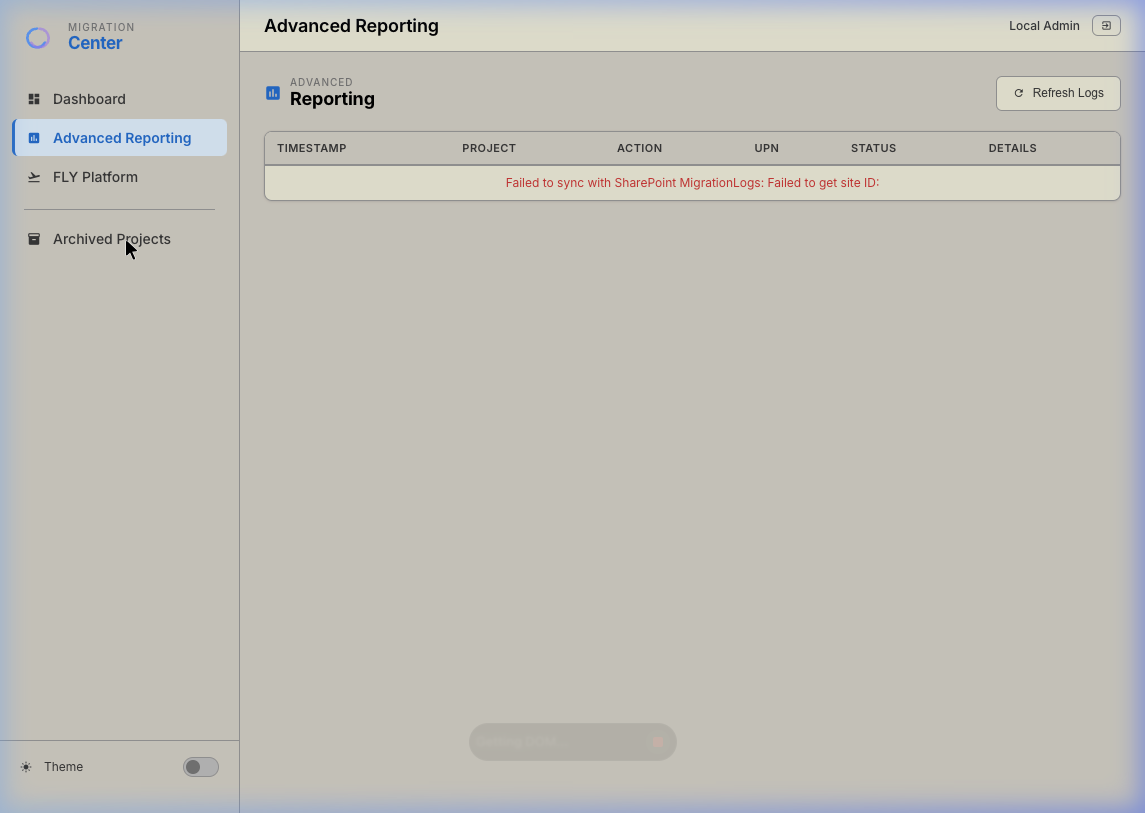
Advanced Reporting provides a global, cross-project audit log — a chronological record of every action executed through the MCC platform, written by every user.
The Advanced Reporting log table — a global view across all projects.
Log entries are written to the MigrationLogs SharePoint list by the
following events: any Migration Action button (Prepare, Migrate, Post-Migration), each individual
communication send, and project creation/deletion. Each row in the log contains:
| Column | Description |
|---|---|
| Timestamp | Exact date and time the action occurred (UTC, displayed in your local time). |
| Project | The project title the action belongs to. |
| Action | The action type, e.g. MailStart, PrepareObjects,
PostMigrationSwap.
|
| UPN | The specific user/object the log entry refers to. For project-level actions, this shows the executor's UPN. |
| Status | Colour-coded: ✓ Success (green), ⚠ Warning (amber), ✗ Error (red). |
| Details | Expandable description of the event — particularly useful for debugging failed actions, showing HTTP error codes or exception messages. |
11. Archiving Projects
Once a migration is complete, archiving removes the project from the active Dashboard view without deleting any of its data. Archived projects are permanently preserved as read-only references.
The Archived Projects view — completed projects moved out of the active Dashboard.
- 1On the Dashboard, locate the completed project card.
- 2Click the Archive button on the card. MCC
updates the project's
ProjectStatusfield in SharePoint fromActivetoArchived. - 3The project card disappears from the main Dashboard (which shows only Active projects).
- 4To view archived projects, click Archived Projects in the left sidebar. The dashboard re-renders showing only Archived cards.
- 5Archived projects are read-only — their data, terminal history, and migration logs remain accessible but no actions can be triggered against them.
End of User Guide · Migration Control Center · Harris Computer Germany
For technical support, contact your system administrator.